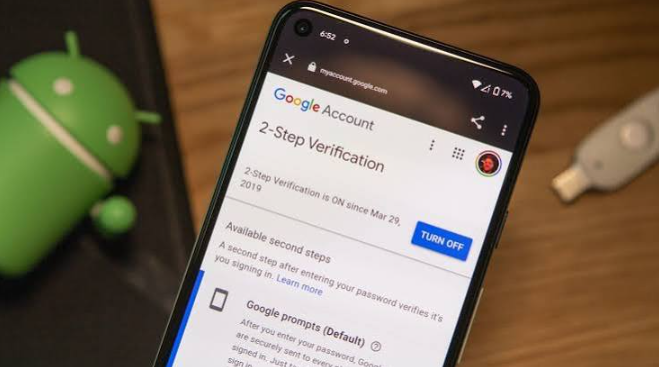

Protecting an email account involves more than choosing a strong password. Google offers several authentication controls, and understanding how they interact is important when connecting mail software. Readers may see terms such as Gmail PVA account, but phone verification is not the same as two-step verification and does not automatically enable an app password.
Two-step verification adds another sign-in check to a Google Account. An app password is a separate 16-digit passcode that can be used by certain older applications or devices that cannot use Sign in with Google. Google requires two-step verification before an app password can be created, but it recommends modern sign-in whenever an application supports it.
Pages referring to Gmail accounts with app-password access should therefore be understood as third-party descriptions, not proof that a Google Account has a particular security configuration. This article explains the relationship between the two features, how to configure them responsibly, and why security settings should remain under the account owner’s control.
What Two-Step Verification Adds
Two-step verification, also called two-factor authentication, adds a second layer to password-based sign-in. If someone learns the regular password, they may still be unable to access the account without completing the additional verification step. Google can offer different methods depending on the account, device, and risk signals. The account owner should choose a reliable method and keep recovery options updated.
Verification codes and approval prompts must remain private. A legitimate support agent should not ask a user to disclose a one-time code. Attackers sometimes impersonate technical support and pressure people to share codes, so any unexpected request should be treated as suspicious. Use Google’s own security pages to review and manage sign-in methods.
See also: How to Evaluate Paid Leave and Other Workplace Benefits
Why App Passwords Require Two-Step Verification
App passwords are intended for older applications that cannot complete the modern Google sign-in process. Requiring two-step verification adds an extra security condition before the account owner can create this separate credential. The app password can then be entered into a compatible application without using the primary account password in that application.
However, the feature is a compatibility option, not the strongest choice for every connection. A modern application should use Sign in with Google. That method keeps authentication with Google and allows the user to review the access request. App passwords should be reserved for cases where modern authorization is genuinely unavailable.
Set Up Two-Step Verification Carefully
To enable the feature, sign in to the correct Google Account, open Security or Security & sign-in, and locate the two-step verification setting. Follow the on-screen instructions to add an available second factor. Depending on the account, Google may support prompts, authenticator codes, security keys, or other methods. Choose a method that is both secure and practical for your everyday access.
Before relying on the setup, test that you can complete a sign-in challenge and access recovery options. Keep recovery email and phone details current. For a work or school account, some options may be controlled by an administrator. In that case, follow organizational policy and do not attempt to override centrally managed security settings.
Understand When App Passwords Are Unavailable
Not every account can create app passwords. Google may hide the option when an account is enrolled in Advanced Protection, when it is managed by a work or school organization, or when two-step verification is configured only with security keys. Other account policies can also affect availability. The account owner should check Google’s current help page rather than rely on outdated tutorials.
If the feature is unavailable, use an application that supports Sign in with Google or ask the account administrator for an approved solution. Do not treat a missing menu as a technical fault that must be bypassed. Security controls are designed to limit access paths that could expose the account.
Manage App Passwords as Separate Secrets
When an app password is available and needed, create it for the specific application or device. Store it in a password manager and avoid sending it through chat, email, or screenshots. Review the list of app passwords periodically and revoke credentials for devices or software that are no longer in use. If a device is lost, remove its associated credential promptly.
Google states that app passwords are revoked when the primary Google Account password changes. This means an integration may need to be configured again after a password reset. Keep a record of which authorized application uses each credential, but never store the passcodes in an unprotected shared document.
Build a Stronger Sign-In Routine
Two-step verification and app passwords serve different purposes. The first strengthens account sign-in; the second provides a limited compatibility route for older software. They should not be confused with phone verification during account creation, nor should either feature be treated as a guarantee that an account is immune to compromise. Good security also depends on unique passwords, current devices, careful permission reviews, and recovery planning.
In conclusion, enable two-step verification to protect the account, prefer Sign in with Google for connected applications, and use app passwords only when required by compatible legacy software. Keep all credentials private and follow Google’s official instructions whenever settings or eligibility rules change.